
Mirror printing in Word is not just about flipping an object on the canvas. The confusion between visual flipping on the screen and inversion at the printer driver level causes most failures, especially with heat transfer and transparent films. Here we distinguish between the two mechanisms and their interactions.
Printer driver and mirror option: the setting that Word does not manage
Word has no native mirror printing function. The inversion of the print flow relies entirely on the printer driver. Depending on the manufacturer and model, the option has a different name: Mirror Image, Flip Horizontal, or Horizontal Flip.
To access it, we go through File > Print > Printer Properties. The panel that opens depends on the installed driver, not on Word. On some consumer inkjet models, the option is hidden in an advanced tab or a submenu named “Layout” or “Features.” On others, it simply does not exist.
When the driver does not offer a mirror checkbox, the only reliable solution is to export the document as a PDF and then use third-party software capable of flipping the pages before sending them to the printer. Trying to work around the problem by manually flipping each element in Word results in margin shifts and unreadable text as soon as the layout exceeds a single text box.
If you want to know exactly how to print in mirror on Word, the distinction between software settings and driver settings is the first point to clarify before any manipulation.
Flipping an object in Word: text box, image, and WordArt
Flipping a graphic object in Word serves a different purpose than mirror printing. It modifies the display on the screen and the appearance in the file, but does not affect the behavior of the print flow.
Horizontal flipping of an image or shape
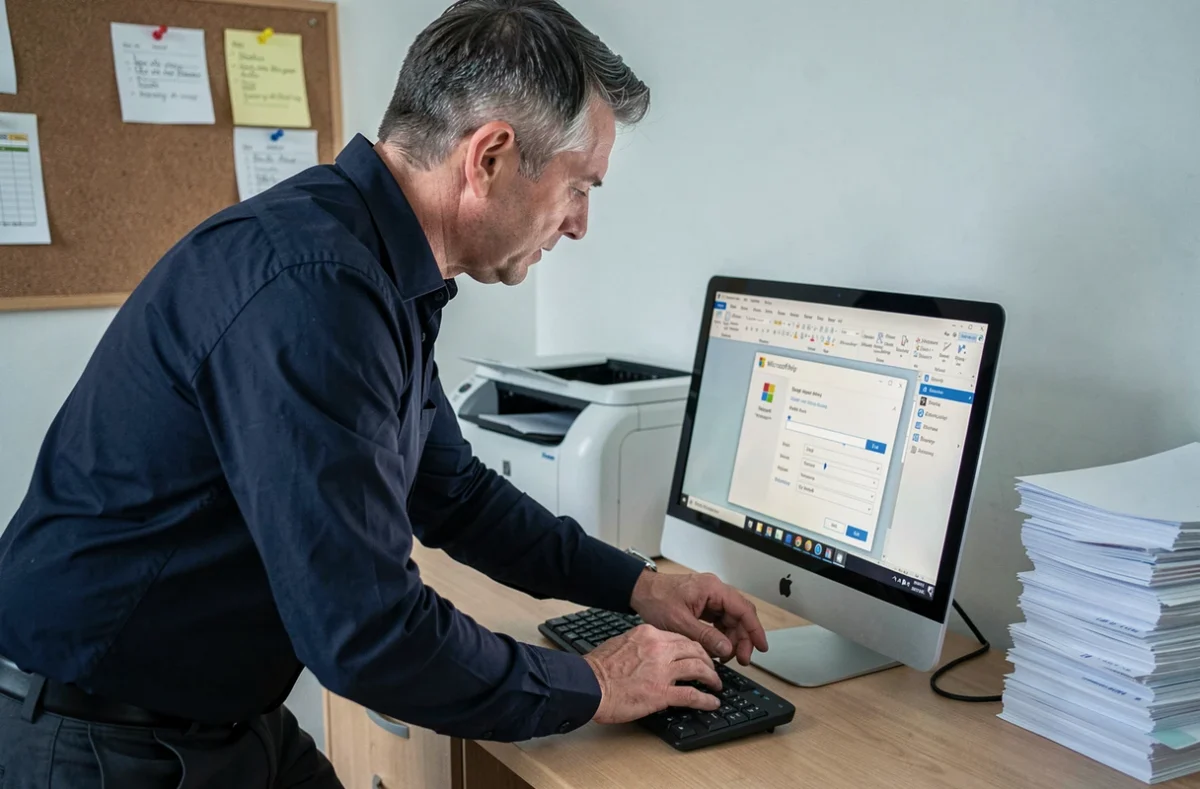
We select the object, then access the Format tab (or Picture Format depending on the version). The Rotation button offers the option Flip Horizontal. The object is inverted on its vertical axis, as if in front of a mirror.
- For an inserted image: click on the image, Picture Format tab, Rotation > Flip Horizontal. The image retains its dimensions but its content is flipped left-right.
- For a text box: the same path via the Shape Format tab. The text inside appears mirrored, but remains selectable and editable.
- For a WordArt object: the flipping works in the same way. Note that the inverted text in WordArt will not be indexed correctly if the document is converted to PDF with OCR.
Precise angle rotation for specific cases
Sometimes, the need is not a strict mirror but a 180-degree rotation (text upside down, useful for printed riddles or cards to be flipped). In this case, we right-click on the object, select Size and Position, then enter the value in the Rotation field. This method offers control to the exact degree, unlike dragging the rotation handle which lacks precision.
Mirror printing for textile transfer: checks before printing
The on-screen rendering does not guarantee the printed rendering. This rule particularly applies to heat transfer, where a missing inversion produces unreadable text once the design is pressed onto the fabric.
Some transfer papers require the image to be printed in mirror by the user, while others already incorporate the inversion in their design (adhesive layer on the printed side). We recommend always reading the instructions of the medium before touching any settings.
The control protocol we apply before each print on special media follows a precise order:
- Check whether the transfer paper requires mirror printing or not, by consulting the manufacturer’s instructions.
- Activate or deactivate the mirror option in the printer driver, never in Word.
- Export the document as a PDF and open the preview to visually check the orientation of the text and logos before printing.
- Run a test print on plain paper, then place the sheet in front of a physical mirror to validate the final result.
This last step may seem rudimentary, but it remains the most reliable for detecting a forgotten inversion or a duplicate inversion (mirror activated in the driver while the object is already flipped in Word).
Common problems and technical traps to avoid
The most common trap is double inversion: the user flips the image in Word and then also activates the mirror option in the driver. The printed result appears right-side up, which seems correct on regular paper, but produces an unflipped transfer on fabric.
Another source of error: transparent elements, thin outlines, and drop shadows. These graphic attributes can be interpreted differently by the driver during inversion. An outline of 0.25 pt visible on the screen may disappear in print, or a shadow may end up on the wrong side. Working on a copy of the file and targeting only the relevant pages limits the risks of layout corruption.
In versions of Word prior to 2010, flipping text boxes is not natively available. The fallback method is to create the text in Paint, apply horizontal symmetry via Image > Flip Horizontal, then paste the result into Word as an image. The text then loses its editable character, but the inversion is reliable.
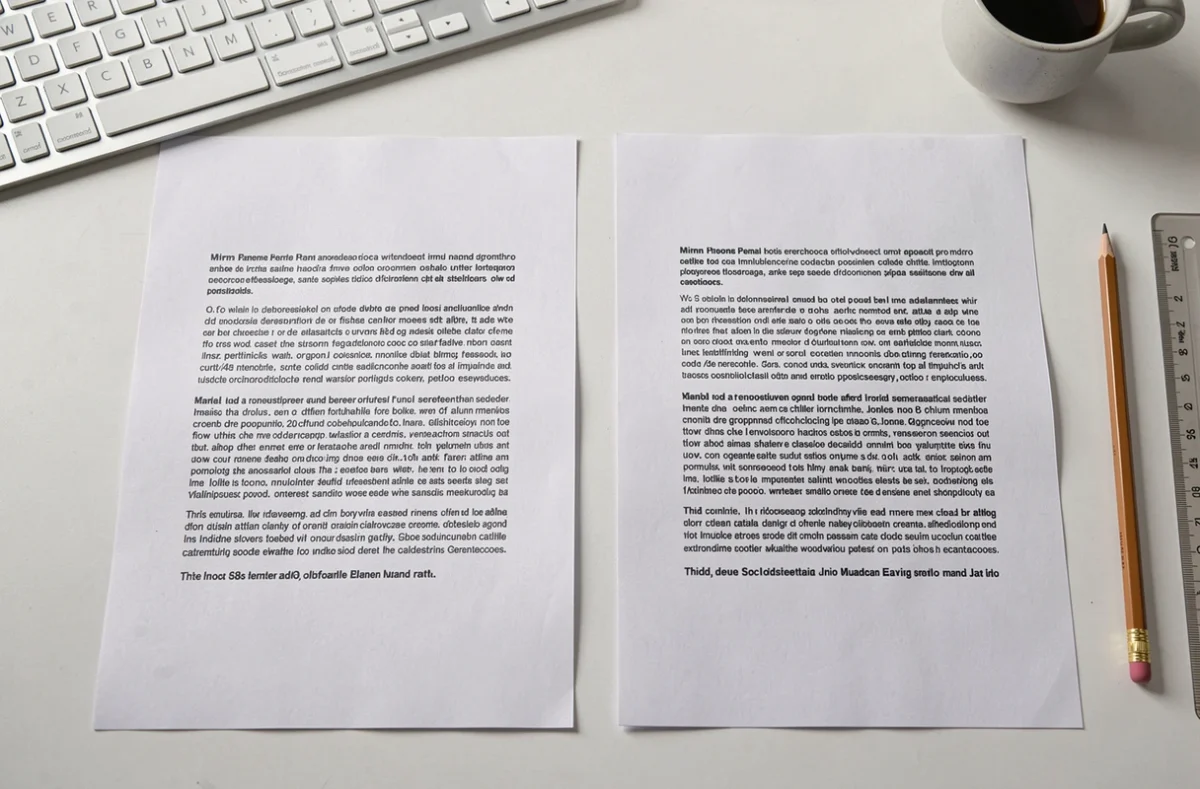
Mirror printing in Word relies on two distinct levers that must never be mistakenly combined: the object flipping in the document and the mirror option of the printer driver. Identifying which of the two corresponds to the actual need, then systematically validating through a test on plain paper, is enough to avoid almost all failures.